> ## Documentation Index
> Fetch the complete documentation index at: https://www.adaline.ai/docs/llms.txt
> Use this file to discover all available pages before exploring further.
# Analyze evaluation reports
> Review, compare, and act on detailed evaluation results to improve your prompts
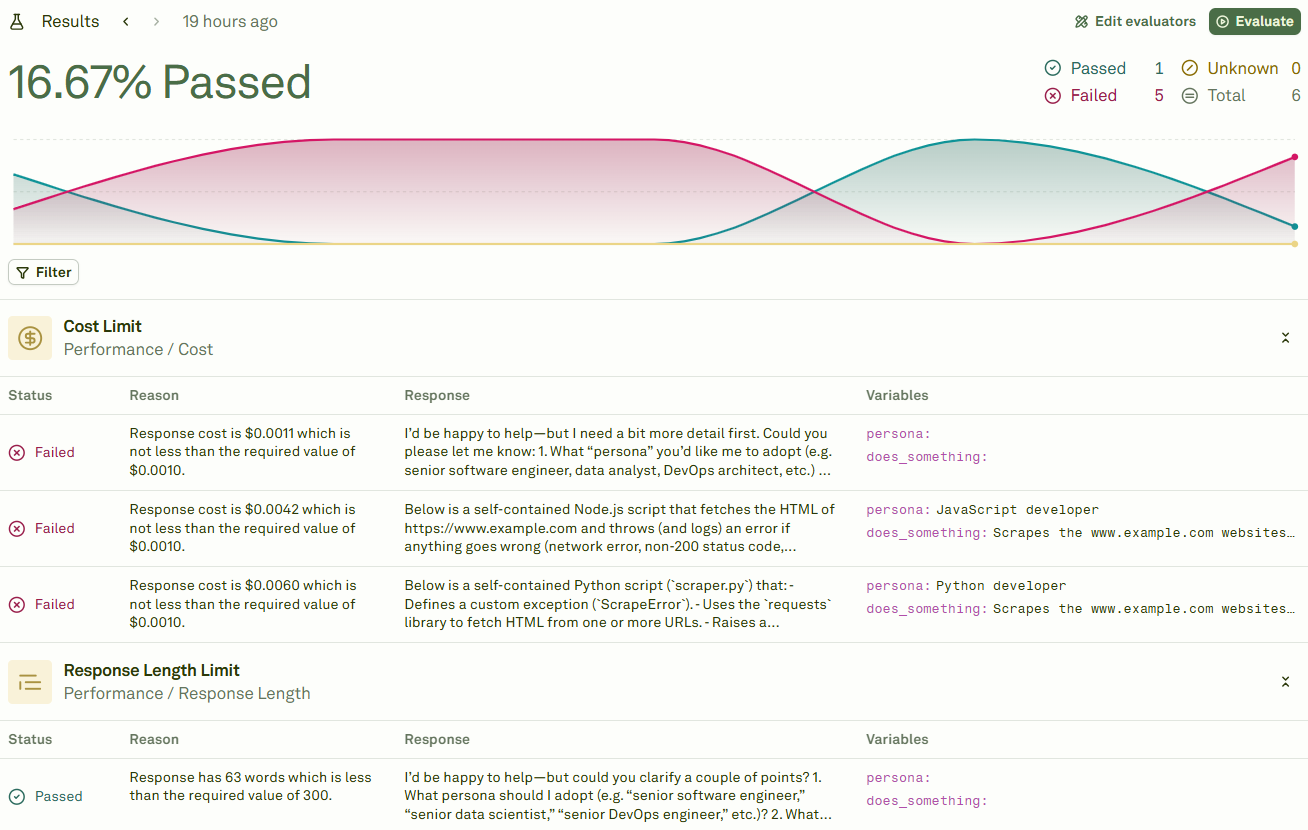
After an evaluation completes, Adaline generates a detailed report with per-row results, evaluator scores, and comparison tools. Use these reports to identify failures, spot patterns, and drive prompt improvements.
## View evaluation results
Once your evaluation finishes, the results are displayed automatically:
 ## Inspect individual test cases
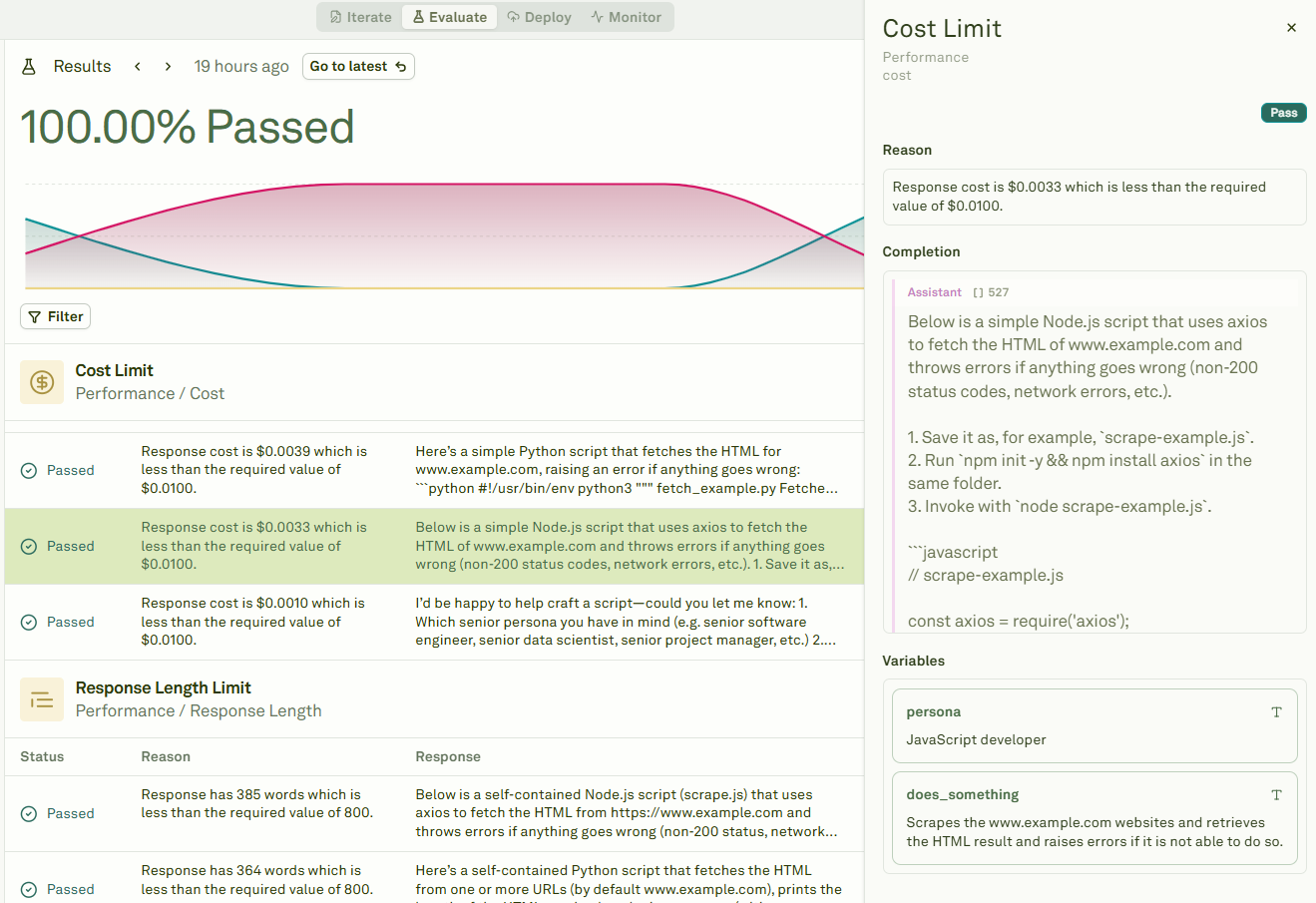
Click on any row to inspect the details of a specific test case — including the model's full response, each evaluator's score, and the reason for pass or failure:
## Inspect individual test cases
Click on any row to inspect the details of a specific test case — including the model's full response, each evaluator's score, and the reason for pass or failure:
 ## Filter results
Use the **Filter** option to narrow down the results and focus on what matters most:
## Filter results
Use the **Filter** option to narrow down the results and focus on what matters most:
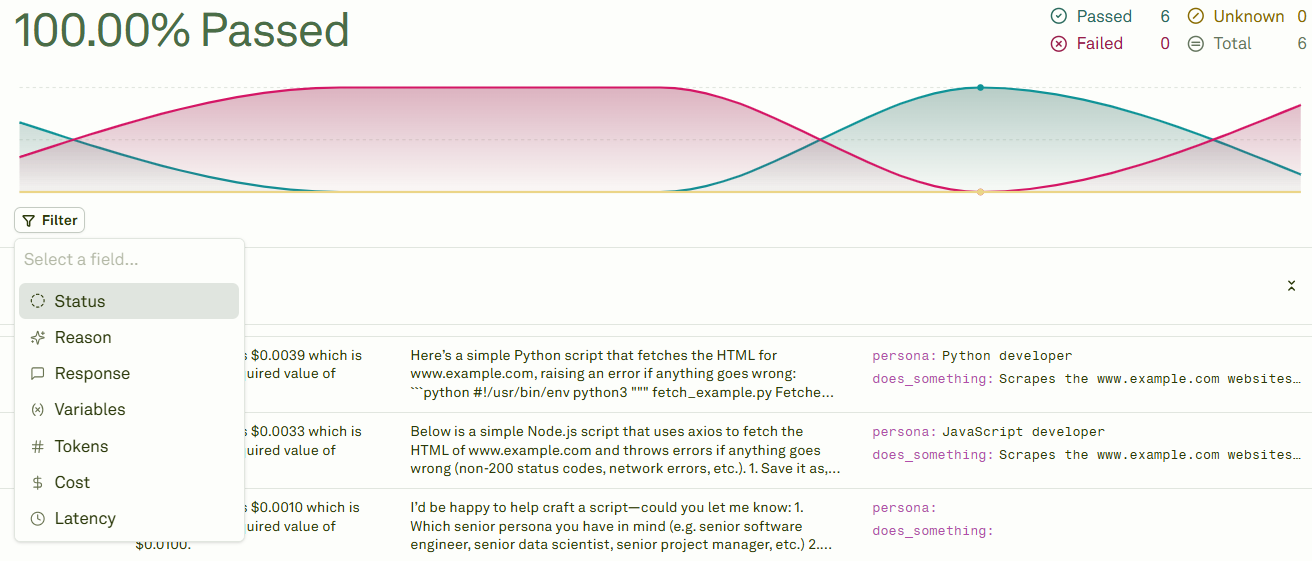 Common filters include:
| Filter | Use case |
| ------------------ | ----------------------------------------------------------------------------- |
| **Pass/Fail** | Focus on failing test cases to prioritize fixes. |
| **Evaluator type** | Isolate results from a specific evaluator (e.g., only LLM-as-a-Judge scores). |
| **Score range** | Find test cases with borderline scores that may need attention. |
| **Search** | Find specific patterns or keywords in test case data. |
## Compare across evaluation runs
When you run multiple evaluations, you can navigate between each run's results using the graph view. Hover over a point to see the summary:
Common filters include:
| Filter | Use case |
| ------------------ | ----------------------------------------------------------------------------- |
| **Pass/Fail** | Focus on failing test cases to prioritize fixes. |
| **Evaluator type** | Isolate results from a specific evaluator (e.g., only LLM-as-a-Judge scores). |
| **Score range** | Find test cases with borderline scores that may need attention. |
| **Search** | Find specific patterns or keywords in test case data. |
## Compare across evaluation runs
When you run multiple evaluations, you can navigate between each run's results using the graph view. Hover over a point to see the summary:
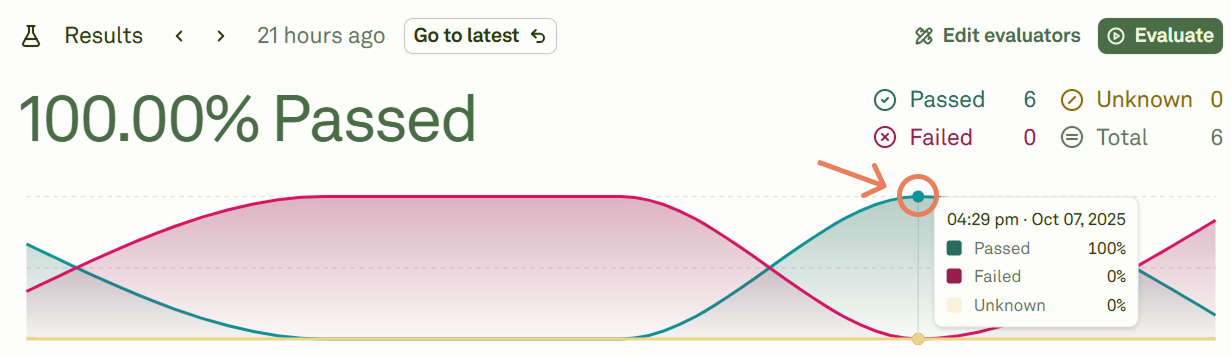 Click on a point in the graph to view that run's detailed results. The **Go to latest** button redirects to the most recent run. You can view and compare any of the last 20 evaluation runs.
This is valuable for:
* **Tracking progress** — See how scores improve as you refine your prompt.
* **A/B testing** — Compare results between different prompt versions or model configurations.
* **Regression detection** — Spot cases where a prompt change caused previously passing test cases to fail.
## Act on insights
Use report data to drive systematic prompt improvements:
1. **Prioritize failures** — Focus on test cases that fail consistently across multiple runs.
2. **Open in Playground** — Click on any failing test case to open it in the [Playground](/docs/iterate/run-prompts-in-playground) for interactive debugging.
3. **Identify patterns** — Look for common themes in failures (certain input types, specific evaluator criteria, edge cases).
4. **Refine and re-evaluate** — Update your prompt in the [Editor](/docs/iterate/overview), then run a new evaluation to measure the impact.
5. **Compare runs** — Use the run comparison graph to verify that your changes improved overall scores without introducing regressions.
When you identify a common failure pattern, add more test cases to your dataset that target that specific pattern. This builds a robust test suite that catches regressions as your prompt evolves.
## Next steps
Run another evaluation with updated prompts.
Deploy your validated prompt to production.
Click on a point in the graph to view that run's detailed results. The **Go to latest** button redirects to the most recent run. You can view and compare any of the last 20 evaluation runs.
This is valuable for:
* **Tracking progress** — See how scores improve as you refine your prompt.
* **A/B testing** — Compare results between different prompt versions or model configurations.
* **Regression detection** — Spot cases where a prompt change caused previously passing test cases to fail.
## Act on insights
Use report data to drive systematic prompt improvements:
1. **Prioritize failures** — Focus on test cases that fail consistently across multiple runs.
2. **Open in Playground** — Click on any failing test case to open it in the [Playground](/docs/iterate/run-prompts-in-playground) for interactive debugging.
3. **Identify patterns** — Look for common themes in failures (certain input types, specific evaluator criteria, edge cases).
4. **Refine and re-evaluate** — Update your prompt in the [Editor](/docs/iterate/overview), then run a new evaluation to measure the impact.
5. **Compare runs** — Use the run comparison graph to verify that your changes improved overall scores without introducing regressions.
When you identify a common failure pattern, add more test cases to your dataset that target that specific pattern. This builds a robust test suite that catches regressions as your prompt evolves.
## Next steps
Run another evaluation with updated prompts.
Deploy your validated prompt to production.