> ## Documentation Index
> Fetch the complete documentation index at: https://www.adaline.ai/docs/llms.txt
> Use this file to discover all available pages before exploring further.
# Import CSV into dataset
> Bulk-import test cases from CSV files to quickly populate your evaluation datasets
If you have test case data stored in a CSV file, you can bulk-import it into an Adaline dataset instead of adding rows manually. This is the fastest way to populate a dataset with large volumes of test data for evaluation — including multimodal data like images and PDFs.
## Import a CSV file
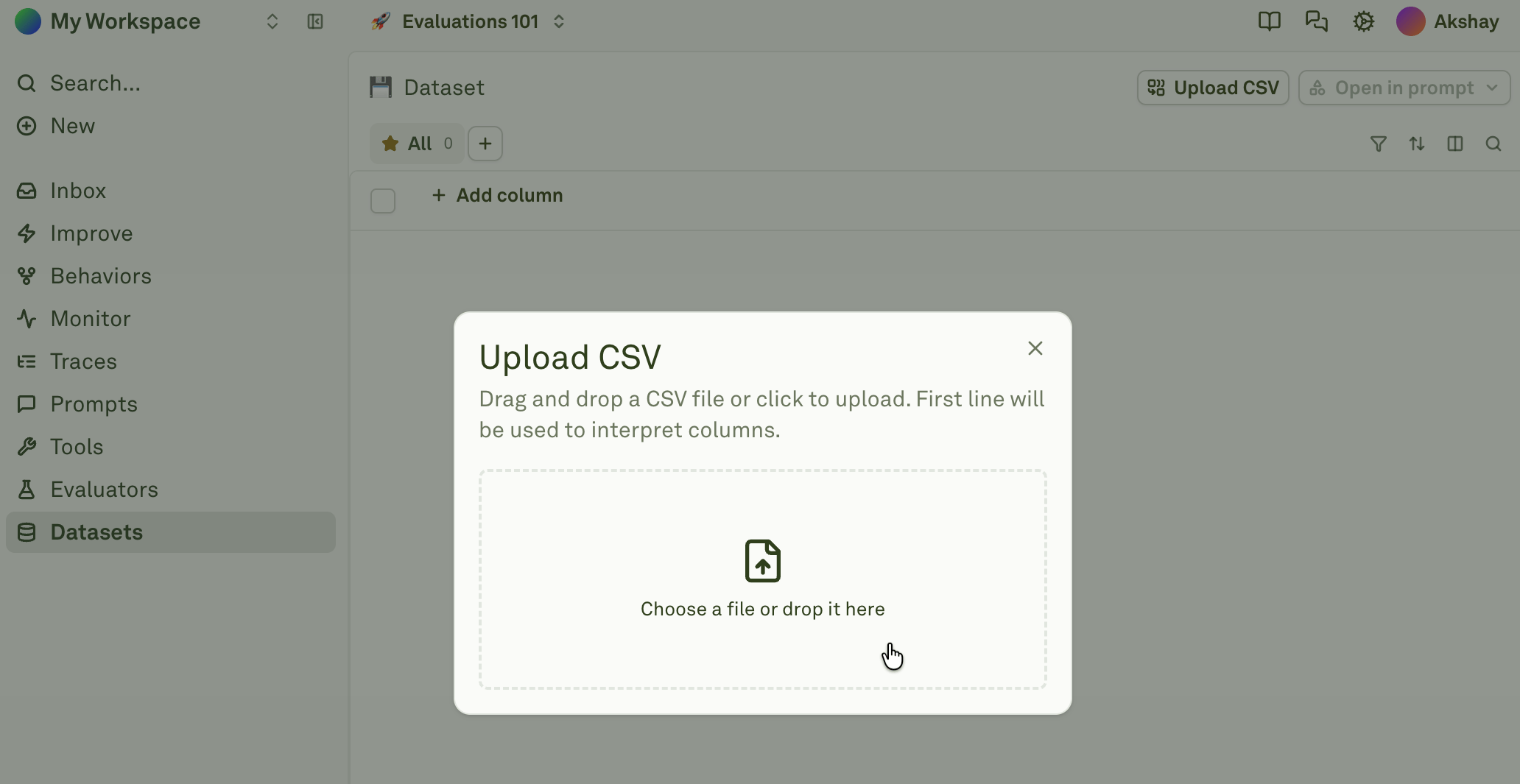
Open your dataset and click **Upload CSV** to start the import:
 ## Import behavior
The system handles empty and existing datasets differently:
| Dataset state | Import behavior |
| -------------------- | ---------------------------------------------------------------------------------------------------- |
| **Empty dataset** | The first row of the CSV becomes column names. All subsequent rows are added as test cases. |
| **Existing columns** | The first row of the CSV must match existing column names exactly. Rows are appended to the dataset. |
If your CSV looks correct but the import fails with a parsing error, try importing the CSV into Google Sheets first, then exporting it back as a CSV. Use the re-exported file in Adaline — this resolves most encoding and formatting issues invisible to the human eye.
## CSV format and examples
The first row of your CSV is always the header row — these become (or must match) your dataset column names. Every subsequent row is a test case. Column names should match your prompt's variable names exactly so they map correctly during evaluation.
### Text-only CSV
A standard CSV where every cell contains plain text:
```csv theme={null}
user_question,context
What is the capital of France?,"France is a country in Western Europe."
Summarize this article.,"The article discusses the impact of AI on healthcare."
```
### Text and images
To include images in a CSV, use a publicly accessible image URL or a base64-encoded image string as the cell value. Adaline automatically detects the modality.
```csv theme={null}
user_question,product_image
Describe this product.,https://example.com/images/product-a.png
What color is this item?,https://example.com/images/product-b.jpeg
Is this item suitable for outdoor use?,https://example.com/images/product-c.webp
```
Supported image formats: PNG, JPEG/JPG, GIF, and WebP.
### Text, images, and PDFs
Combine all three modalities across different columns:
```csv theme={null}
user_question,reference_image,supporting_document
Describe what you see in the image.,https://example.com/images/storefront.png,https://example.com/docs/brand-guidelines.pdf
Compare this image to the brand guidelines.,https://example.com/images/new-design.jpeg,https://example.com/docs/brand-guidelines.pdf
Summarize the key findings from this report.,https://example.com/images/chart.png,https://example.com/docs/q4-report.pdf
```
### Base64-encoded content
You can include base64-encoded images or PDFs directly in the CSV. This is useful when your files are not publicly hosted:
```csv theme={null}
user_question,product_image
Describe this product.,"data:image/png;base64,iVBORw0KGgoAAAANSUhEUgAA..."
What color is this item?,https://example.com/images/product-b.jpeg
```
You can freely mix URLs and base64 strings within the same column. Adaline handles each cell independently and detects the modality automatically.
## How modality detection works
When Adaline parses a CSV, it inspects each cell value and determines the modality:
* Plain text values are treated as **text**.
* Values starting with `http://` or `https://` pointing to image files (`.png`, `.jpg`, `.jpeg`, `.gif`, `.webp`) are treated as **images**.
* Values starting with `http://` or `https://` pointing to `.pdf` files are treated as **PDFs**.
* Values starting with `data:image/` are treated as **base64-encoded images**.
* Values starting with `data:application/pdf;base64,` are treated as **base64-encoded PDFs**.
See [Different Modalities in Dataset](/docs/evaluate/different-modalities-in-dataset) for the full guide on working with multimodal data in datasets, including size limits and storage behavior.
## Next steps
Work with text, images, and PDFs in dataset cells.
Create and configure datasets for evaluation.
## Import behavior
The system handles empty and existing datasets differently:
| Dataset state | Import behavior |
| -------------------- | ---------------------------------------------------------------------------------------------------- |
| **Empty dataset** | The first row of the CSV becomes column names. All subsequent rows are added as test cases. |
| **Existing columns** | The first row of the CSV must match existing column names exactly. Rows are appended to the dataset. |
If your CSV looks correct but the import fails with a parsing error, try importing the CSV into Google Sheets first, then exporting it back as a CSV. Use the re-exported file in Adaline — this resolves most encoding and formatting issues invisible to the human eye.
## CSV format and examples
The first row of your CSV is always the header row — these become (or must match) your dataset column names. Every subsequent row is a test case. Column names should match your prompt's variable names exactly so they map correctly during evaluation.
### Text-only CSV
A standard CSV where every cell contains plain text:
```csv theme={null}
user_question,context
What is the capital of France?,"France is a country in Western Europe."
Summarize this article.,"The article discusses the impact of AI on healthcare."
```
### Text and images
To include images in a CSV, use a publicly accessible image URL or a base64-encoded image string as the cell value. Adaline automatically detects the modality.
```csv theme={null}
user_question,product_image
Describe this product.,https://example.com/images/product-a.png
What color is this item?,https://example.com/images/product-b.jpeg
Is this item suitable for outdoor use?,https://example.com/images/product-c.webp
```
Supported image formats: PNG, JPEG/JPG, GIF, and WebP.
### Text, images, and PDFs
Combine all three modalities across different columns:
```csv theme={null}
user_question,reference_image,supporting_document
Describe what you see in the image.,https://example.com/images/storefront.png,https://example.com/docs/brand-guidelines.pdf
Compare this image to the brand guidelines.,https://example.com/images/new-design.jpeg,https://example.com/docs/brand-guidelines.pdf
Summarize the key findings from this report.,https://example.com/images/chart.png,https://example.com/docs/q4-report.pdf
```
### Base64-encoded content
You can include base64-encoded images or PDFs directly in the CSV. This is useful when your files are not publicly hosted:
```csv theme={null}
user_question,product_image
Describe this product.,"data:image/png;base64,iVBORw0KGgoAAAANSUhEUgAA..."
What color is this item?,https://example.com/images/product-b.jpeg
```
You can freely mix URLs and base64 strings within the same column. Adaline handles each cell independently and detects the modality automatically.
## How modality detection works
When Adaline parses a CSV, it inspects each cell value and determines the modality:
* Plain text values are treated as **text**.
* Values starting with `http://` or `https://` pointing to image files (`.png`, `.jpg`, `.jpeg`, `.gif`, `.webp`) are treated as **images**.
* Values starting with `http://` or `https://` pointing to `.pdf` files are treated as **PDFs**.
* Values starting with `data:image/` are treated as **base64-encoded images**.
* Values starting with `data:application/pdf;base64,` are treated as **base64-encoded PDFs**.
See [Different Modalities in Dataset](/docs/evaluate/different-modalities-in-dataset) for the full guide on working with multimodal data in datasets, including size limits and storage behavior.
## Next steps
Work with text, images, and PDFs in dataset cells.
Create and configure datasets for evaluation.