> ## Documentation Index
> Fetch the complete documentation index at: https://www.adaline.ai/docs/llms.txt
> Use this file to discover all available pages before exploring further.
# Tool calls in Playground
> Execute and test tool calls with manual responses or automatic execution in the Playground
The Playground provides a sandbox environment for testing how your LLM interacts with [tools](/docs/iterate/use-tools-in-prompt) and [MCP servers](/docs/iterate/use-mcp-server-in-prompt). When the model determines it needs external data, it generates a tool call request that you can handle manually or have the Playground execute automatically.
## How tool calls work in the Playground
When the model decides it needs to invoke a tool, the Playground displays the tool call as a distinct content block in the conversation flow. The tool call appears as an **Assistant** message containing the tool name and its parameters.
You then have two options:
1. **Manually provide a tool response** — Enter the tool result yourself and continue the conversation.
2. **Enable auto tool calls** — Let the Playground automatically execute tools that have a [configured HTTP endpoint](/docs/iterate/use-tools-in-prompt#configure-auto-tool-calls).
## Manual tool call workflow
Manual tool calls give you complete control over the tool interaction. This is useful for debugging, testing edge cases, or simulating specific tool responses.
Suppose you have a tool that answers "yes" or "no" to questions. When the model invokes it, you see the tool call in the Playground:
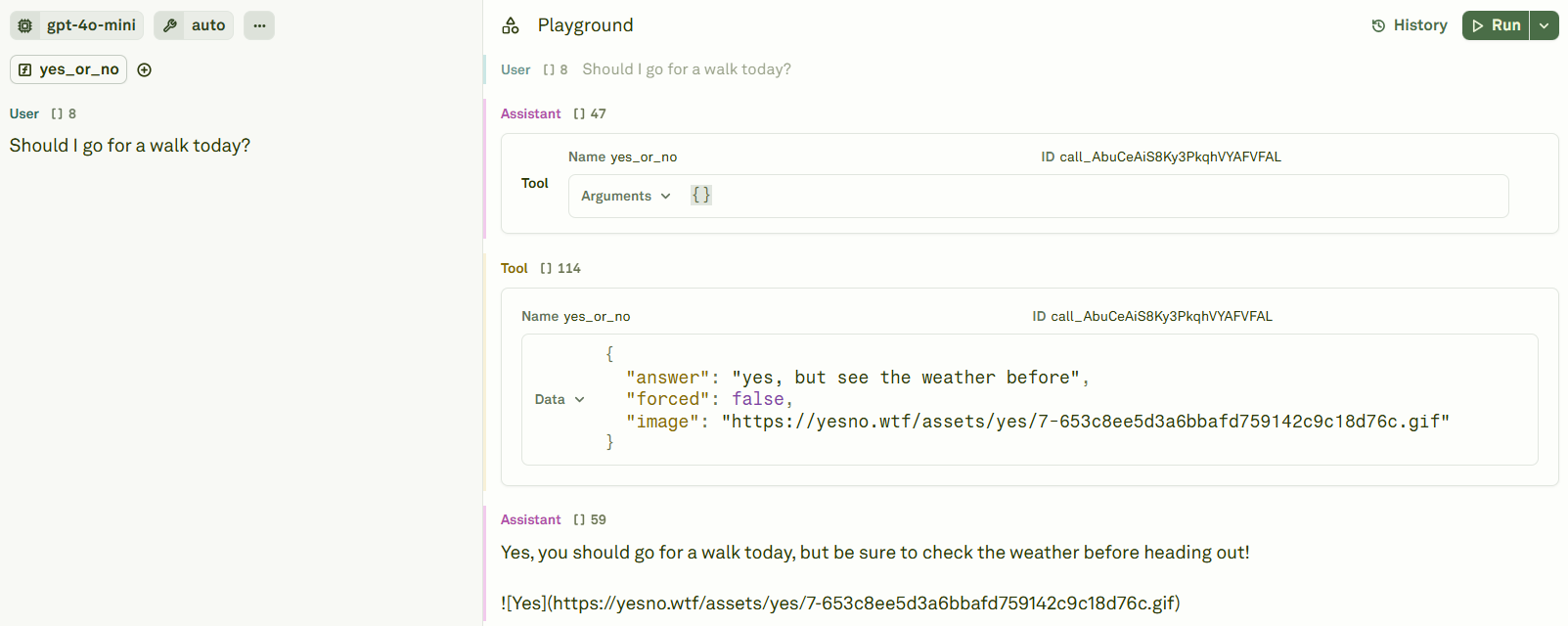
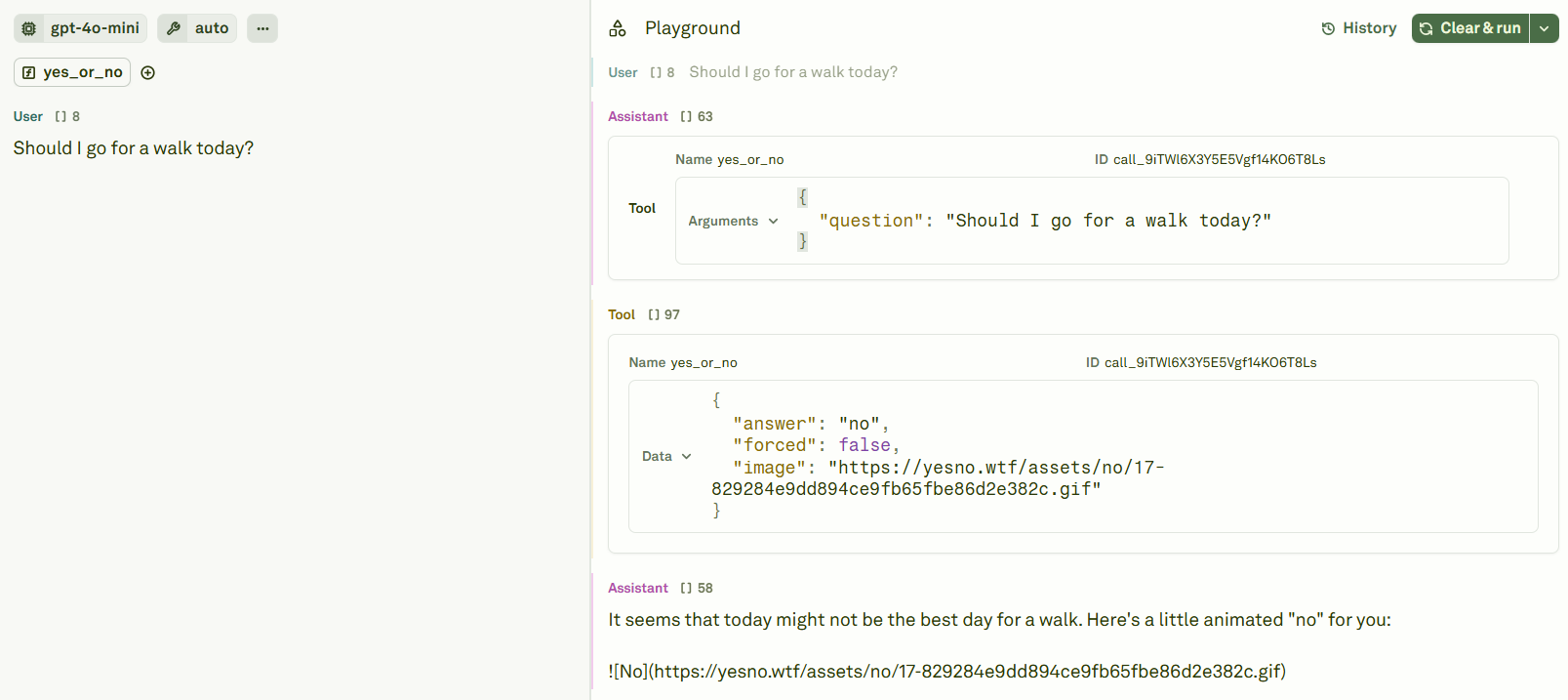 You can modify the tool's response to steer the conversation. For example, change the `answer` field to test how the model handles different tool outputs:
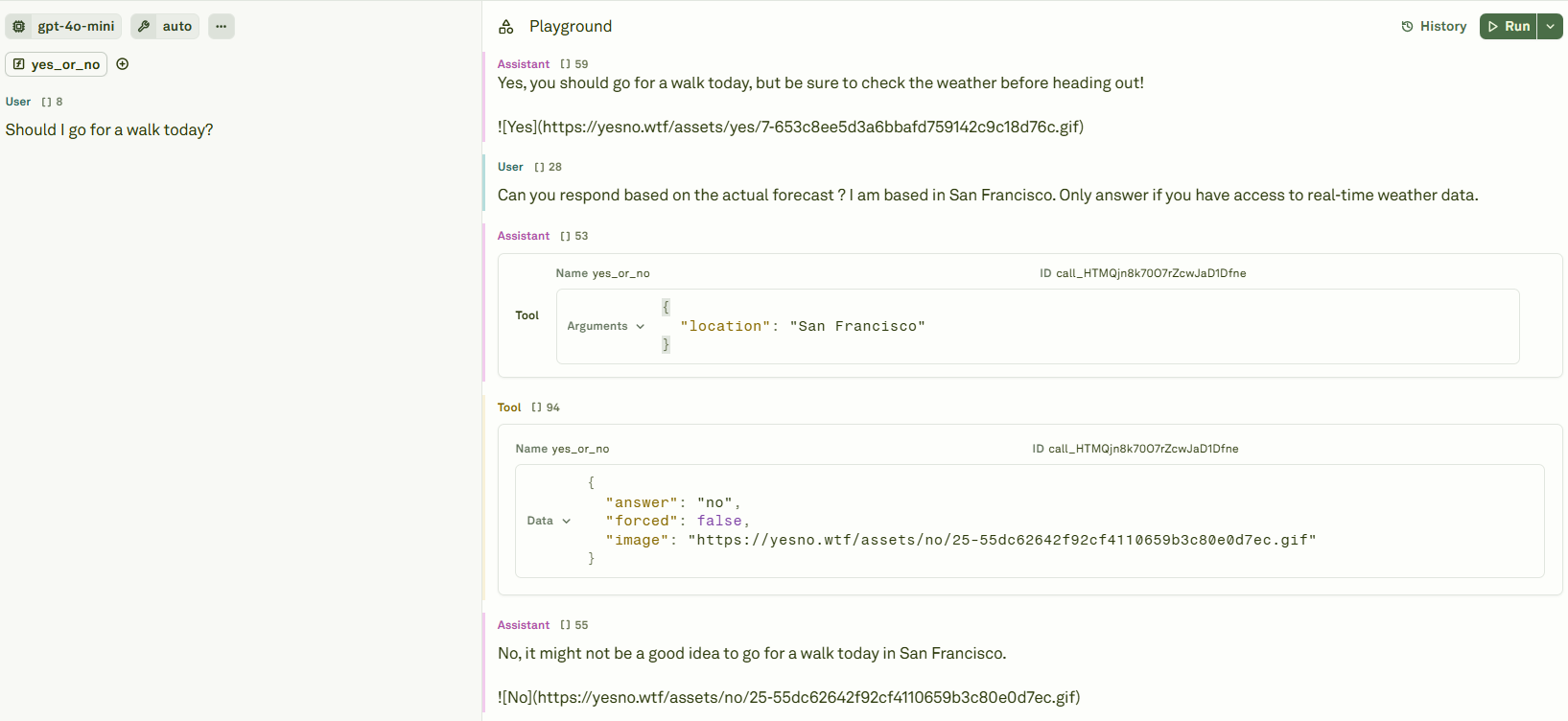
 Continue the conversation to observe how the model incorporates the tool response into its reasoning. You can build complex, multi-turn tool interactions this way:
 ## Auto tool calls
When tools are configured with a `request` object (an HTTP endpoint), the Playground can automatically:
1. **Execute the tool call** — Send the HTTP request to the configured backend.
2. **Inject the response** — Insert the tool response into the conversation.
3. **Continue the conversation** — Pass the full context back to the model for its next response.
This enables fully automated multi-turn conversations where the model can call multiple tools in sequence without manual intervention.
Auto tool calls also work with [MCP servers](/docs/iterate/use-mcp-server-in-prompt). When MCP is enabled and the model calls a tool provided by an MCP server, the Playground automatically routes the call through the MCP protocol.
## Debugging tool interactions
The Playground provides full transparency into tool interactions:
| What you can inspect | How it helps |
| ------------------------- | ------------------------------------------------------------------------------------ |
| **Tool call parameters** | Verify the model is passing the right arguments to your tools. |
| **Tool response content** | Check that your backend (or manual response) returns the expected data. |
| **Multi-turn flow** | Trace the full conversation to understand how the model chains multiple tool calls. |
| **Modified responses** | Edit tool responses mid-conversation to test how the model handles different inputs. |
Use manual tool responses to test error scenarios. For example, return a `"error": "service unavailable"` response to see how your prompt handles tool failures gracefully.
## Best practices
* **Start with manual responses** — Test your tool-enabled prompt manually first to understand the interaction pattern before enabling auto tool calls.
* **Validate tool schemas** — Ensure your tool definitions have clear descriptions and well-defined parameters so the model knows when and how to use them.
* **Test edge cases** — Use the Playground to simulate unexpected tool responses (empty results, errors, timeouts) and verify your prompt handles them gracefully.
* **Review auto tool call chains** — When using auto tool calls, review the full conversation to ensure the model isn't making unnecessary or incorrect tool invocations.
## Next steps
Define tools and configure auto tool call backends.
Test tool-enabled prompts with multiple input samples.
## Auto tool calls
When tools are configured with a `request` object (an HTTP endpoint), the Playground can automatically:
1. **Execute the tool call** — Send the HTTP request to the configured backend.
2. **Inject the response** — Insert the tool response into the conversation.
3. **Continue the conversation** — Pass the full context back to the model for its next response.
This enables fully automated multi-turn conversations where the model can call multiple tools in sequence without manual intervention.
Auto tool calls also work with [MCP servers](/docs/iterate/use-mcp-server-in-prompt). When MCP is enabled and the model calls a tool provided by an MCP server, the Playground automatically routes the call through the MCP protocol.
## Debugging tool interactions
The Playground provides full transparency into tool interactions:
| What you can inspect | How it helps |
| ------------------------- | ------------------------------------------------------------------------------------ |
| **Tool call parameters** | Verify the model is passing the right arguments to your tools. |
| **Tool response content** | Check that your backend (or manual response) returns the expected data. |
| **Multi-turn flow** | Trace the full conversation to understand how the model chains multiple tool calls. |
| **Modified responses** | Edit tool responses mid-conversation to test how the model handles different inputs. |
Use manual tool responses to test error scenarios. For example, return a `"error": "service unavailable"` response to see how your prompt handles tool failures gracefully.
## Best practices
* **Start with manual responses** — Test your tool-enabled prompt manually first to understand the interaction pattern before enabling auto tool calls.
* **Validate tool schemas** — Ensure your tool definitions have clear descriptions and well-defined parameters so the model knows when and how to use them.
* **Test edge cases** — Use the Playground to simulate unexpected tool responses (empty results, errors, timeouts) and verify your prompt handles them gracefully.
* **Review auto tool call chains** — When using auto tool calls, review the full conversation to ensure the model isn't making unnecessary or incorrect tool invocations.
## Next steps
Define tools and configure auto tool call backends.
Test tool-enabled prompts with multiple input samples.