> ## Documentation Index
> Fetch the complete documentation index at: https://www.adaline.ai/docs/llms.txt
> Use this file to discover all available pages before exploring further.
# Use variables in prompts
> Create dynamic, reusable prompt templates with text, image, and PDF variables
Variables are the backbone of dynamic prompting in Adaline. They let you build a single prompt template that adapts to countless scenarios — replacing static content with placeholders that can be swapped at runtime. Instead of maintaining separate prompts for different customers, use cases, or contexts, you create one powerful template with variables.
## How variables work
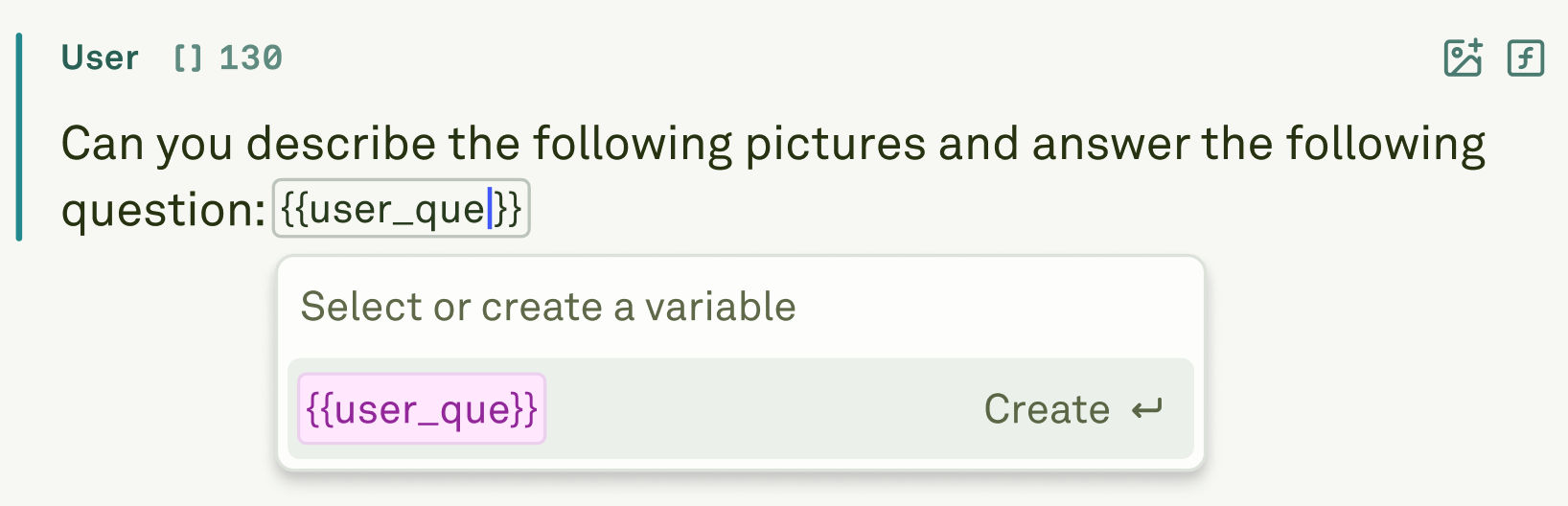
When you type `{{variable_name}}` anywhere in a prompt message, Adaline automatically detects it and creates a corresponding entry in the Variable Editor panel. You can then set values for each variable before running the prompt in the Playground.
 ## Variable name constraints
Variable names must follow specific rules to ensure compatibility across the platform:
**Allowed characters:**
* Letters: `a-z` and `A-Z`
* Numbers: `0-9`
* Underscores: `_`
* Hyphens: `-`
| Valid | Invalid |
| ------------------- | ------------------------------------ |
| `{{user_question}}` | `{{user question}}` (spaces) |
| `{{product_name}}` | `{{user.question}}` (period) |
| `{{user-id}}` | `{{user@name}}` (special characters) |
| `{{item_123}}` | `{{user/name}}` (slash) |
## Variable types
Adaline supports three types of variables, each suited to a different content modality:
### Text variables
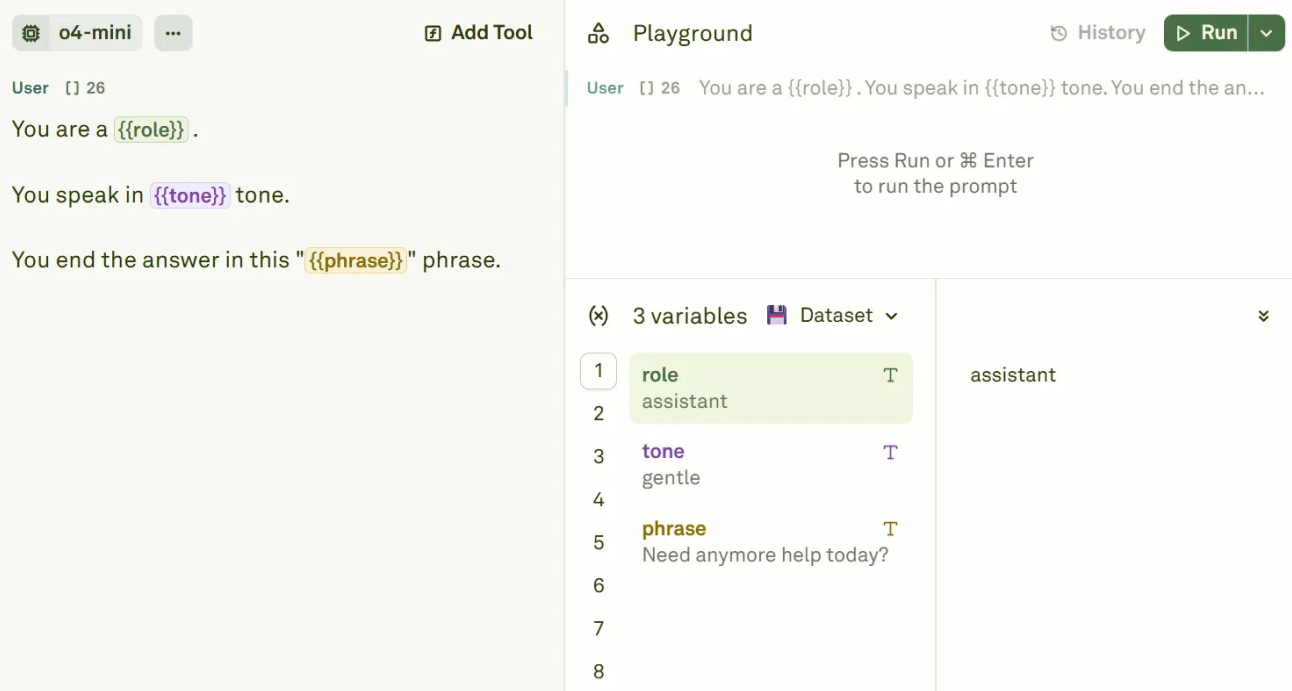
The most common variable type. Define them directly in your prompt text using the `{{variable_name}}` syntax.
**Without variables:**
```markdown theme={null}
Write a haiku about nature that captures a peaceful moment.
```
**With variables:**
```markdown theme={null}
Write a haiku about {{topic}} that evokes {{emotion}} and includes {{element}}
```
Set values for text variables in the Variable Editor:
## Variable name constraints
Variable names must follow specific rules to ensure compatibility across the platform:
**Allowed characters:**
* Letters: `a-z` and `A-Z`
* Numbers: `0-9`
* Underscores: `_`
* Hyphens: `-`
| Valid | Invalid |
| ------------------- | ------------------------------------ |
| `{{user_question}}` | `{{user question}}` (spaces) |
| `{{product_name}}` | `{{user.question}}` (period) |
| `{{user-id}}` | `{{user@name}}` (special characters) |
| `{{item_123}}` | `{{user/name}}` (slash) |
## Variable types
Adaline supports three types of variables, each suited to a different content modality:
### Text variables
The most common variable type. Define them directly in your prompt text using the `{{variable_name}}` syntax.
**Without variables:**
```markdown theme={null}
Write a haiku about nature that captures a peaceful moment.
```
**With variables:**
```markdown theme={null}
Write a haiku about {{topic}} that evokes {{emotion}} and includes {{element}}
```
Set values for text variables in the Variable Editor:
 ### Image variables
Image variables let you dynamically swap visual inputs without changing the prompt structure. To create one:
1. Click the image button in a message block.
2. Select **From Variable** and give it a descriptive name.
3. In the Variable Editor, attach the actual image (URL, base64, or file upload).
See [Use Images in Prompts](/docs/iterate/use-images-in-prompt) for detailed setup steps.
### PDF variables
PDF variables work the same way as image variables but for document inputs. To create one:
1. Click the PDF button in a message block.
2. Select **From Variable** and give it a descriptive name.
3. In the Variable Editor, attach the actual PDF (URL, base64, or file upload).
See [Use PDFs in Prompts](/docs/iterate/use-pdfs-in-prompt) for detailed setup steps.
## Variable sources
Variables can be powered by different sources depending on your workflow needs:
### Image variables
Image variables let you dynamically swap visual inputs without changing the prompt structure. To create one:
1. Click the image button in a message block.
2. Select **From Variable** and give it a descriptive name.
3. In the Variable Editor, attach the actual image (URL, base64, or file upload).
See [Use Images in Prompts](/docs/iterate/use-images-in-prompt) for detailed setup steps.
### PDF variables
PDF variables work the same way as image variables but for document inputs. To create one:
1. Click the PDF button in a message block.
2. Select **From Variable** and give it a descriptive name.
3. In the Variable Editor, attach the actual PDF (URL, base64, or file upload).
See [Use PDFs in Prompts](/docs/iterate/use-pdfs-in-prompt) for detailed setup steps.
## Variable sources
Variables can be powered by different sources depending on your workflow needs:
 | Source | Description | Use case |
| ---------- | ----------------------------------------------------------------------- | ------------------------------------------------------------------------------- |
| **Static** | Direct text, image, or PDF content set manually in the Variable Editor. | Simple testing with fixed inputs. |
| **API** | Fetches live data from external HTTP endpoints at runtime. | Injecting real-time data like user profiles, product catalogs, or live metrics. |
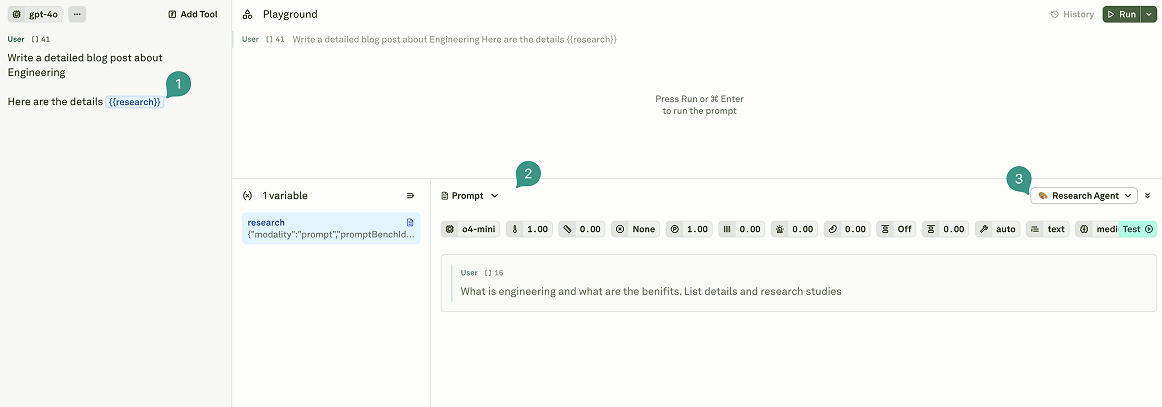
| **Prompt** | Executes another prompt and uses its output as the variable value. | Building agent-like workflows with prompt chaining. |
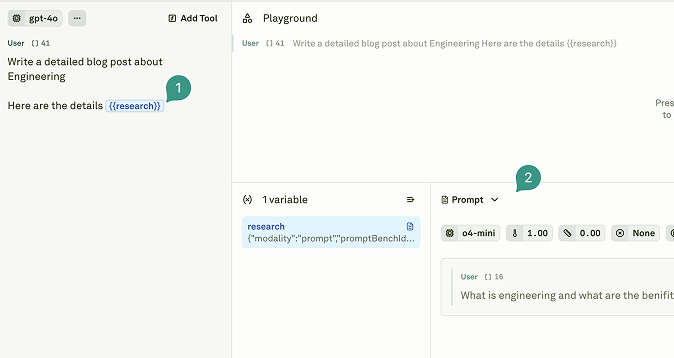
To change a variable's source:
Add a `{{variable_name}}` placeholder in your prompt text, or create an image/PDF variable through the respective buttons.
In the Variable Editor, click on the variable and select the desired source type: static value, API, or Prompt.
For detailed configuration of dynamic sources, see:
* **[API Variables](/docs/iterate/use-apis-in-prompt)** — Fetch live data from external endpoints.
* **[Prompt Variables](/docs/iterate/use-other-prompts-in-prompt)** — Chain prompts together for complex workflows.
## Dynamic sources in datasets
When your variable uses an API or Prompt source and you have a [linked dataset](/docs/iterate/link-datasets-in-playground), the dynamic source is executed for each row individually. This means:
* **API variables** make a unique HTTP request per row, with placeholders like `{{userId}}` resolved from that row's data.
* **Prompt variables** execute the referenced prompt once per row, passing the row's context.
* Results are stored in the dataset cells and can be used for subsequent [evaluations](/docs/evaluate/overview).
| Source | Description | Use case |
| ---------- | ----------------------------------------------------------------------- | ------------------------------------------------------------------------------- |
| **Static** | Direct text, image, or PDF content set manually in the Variable Editor. | Simple testing with fixed inputs. |
| **API** | Fetches live data from external HTTP endpoints at runtime. | Injecting real-time data like user profiles, product catalogs, or live metrics. |
| **Prompt** | Executes another prompt and uses its output as the variable value. | Building agent-like workflows with prompt chaining. |
To change a variable's source:
Add a `{{variable_name}}` placeholder in your prompt text, or create an image/PDF variable through the respective buttons.
In the Variable Editor, click on the variable and select the desired source type: static value, API, or Prompt.
For detailed configuration of dynamic sources, see:
* **[API Variables](/docs/iterate/use-apis-in-prompt)** — Fetch live data from external endpoints.
* **[Prompt Variables](/docs/iterate/use-other-prompts-in-prompt)** — Chain prompts together for complex workflows.
## Dynamic sources in datasets
When your variable uses an API or Prompt source and you have a [linked dataset](/docs/iterate/link-datasets-in-playground), the dynamic source is executed for each row individually. This means:
* **API variables** make a unique HTTP request per row, with placeholders like `{{userId}}` resolved from that row's data.
* **Prompt variables** execute the referenced prompt once per row, passing the row's context.
* Results are stored in the dataset cells and can be used for subsequent [evaluations](/docs/evaluate/overview).
 ## Injecting variables at runtime
When you [deploy your prompt](/docs/deploy/deploy-your-prompt) and fetch it via the SDK, the `{{variable_name}}` placeholders are still present in the prompt messages. Replace them with your runtime values before sending the prompt to your AI provider.
```typescript TypeScript theme={null}
import { Adaline } from '@adaline/client';
const adaline = new Adaline();
const deployment = await adaline.getLatestDeployment({
promptId: 'prompt_abc123',
deploymentEnvironmentId: 'env_production',
});
const variables = {
user_name: 'Alice',
company_name: 'Acme Corp',
};
// Replace {{name}} placeholders in text content across every message.
const messages = deployment.prompt.messages.map((msg) => ({
...msg,
content: msg.content.map((c) => {
if (c.modality !== 'text') return c;
return {
...c,
value: c.value.replace(/\{\{(\w+)\}\}/g, (match, name) => {
return typeof variables[name] === 'string' ? variables[name] : match;
}),
};
}),
}));
```
```python Python theme={null}
import re
from adaline.main import Adaline
adaline = Adaline()
deployment = await adaline.get_latest_deployment(
prompt_id="prompt_abc123",
deployment_environment_id="env_production",
)
variables = {
"user_name": "Alice",
"company_name": "Acme Corp",
}
# Replace {{name}} placeholders in text content across every message.
pattern = re.compile(r"\{\{(\w+)\}\}")
for message in deployment.prompt.messages:
for content in message.content:
if content.modality == "text":
content.value = pattern.sub(
lambda m: str(variables.get(m.group(1), m.group(0))),
content.value,
)
```
For image and PDF variables, look up the variable entry by name in `deployment.prompt.variables` and insert the corresponding `ImageContent` or `PdfContent` into the message instead of a plain text replacement. See the [TypeScript PromptVariable](/docs/reference/sdk/v2/typescript/types/PromptVariable) and [Python PromptVariable](/docs/reference/sdk/v2/python/types/PromptVariable) pages for the full variable schema.
## Best practices
* **Use descriptive names** — Choose names like `{{user_purchase_history}}` instead of `{{var1}}` so that team members can understand the prompt at a glance.
* **Keep variables focused** — Each variable should represent one piece of data. Avoid packing multiple values into a single variable.
* **Test with linked datasets** — Connect a [dataset](/docs/iterate/link-datasets-in-playground) to your variables to efficiently test across many different input combinations.
## Next steps
Fetch live data from external endpoints at runtime.
Chain prompts together for complex workflows.
## Injecting variables at runtime
When you [deploy your prompt](/docs/deploy/deploy-your-prompt) and fetch it via the SDK, the `{{variable_name}}` placeholders are still present in the prompt messages. Replace them with your runtime values before sending the prompt to your AI provider.
```typescript TypeScript theme={null}
import { Adaline } from '@adaline/client';
const adaline = new Adaline();
const deployment = await adaline.getLatestDeployment({
promptId: 'prompt_abc123',
deploymentEnvironmentId: 'env_production',
});
const variables = {
user_name: 'Alice',
company_name: 'Acme Corp',
};
// Replace {{name}} placeholders in text content across every message.
const messages = deployment.prompt.messages.map((msg) => ({
...msg,
content: msg.content.map((c) => {
if (c.modality !== 'text') return c;
return {
...c,
value: c.value.replace(/\{\{(\w+)\}\}/g, (match, name) => {
return typeof variables[name] === 'string' ? variables[name] : match;
}),
};
}),
}));
```
```python Python theme={null}
import re
from adaline.main import Adaline
adaline = Adaline()
deployment = await adaline.get_latest_deployment(
prompt_id="prompt_abc123",
deployment_environment_id="env_production",
)
variables = {
"user_name": "Alice",
"company_name": "Acme Corp",
}
# Replace {{name}} placeholders in text content across every message.
pattern = re.compile(r"\{\{(\w+)\}\}")
for message in deployment.prompt.messages:
for content in message.content:
if content.modality == "text":
content.value = pattern.sub(
lambda m: str(variables.get(m.group(1), m.group(0))),
content.value,
)
```
For image and PDF variables, look up the variable entry by name in `deployment.prompt.variables` and insert the corresponding `ImageContent` or `PdfContent` into the message instead of a plain text replacement. See the [TypeScript PromptVariable](/docs/reference/sdk/v2/typescript/types/PromptVariable) and [Python PromptVariable](/docs/reference/sdk/v2/python/types/PromptVariable) pages for the full variable schema.
## Best practices
* **Use descriptive names** — Choose names like `{{user_purchase_history}}` instead of `{{var1}}` so that team members can understand the prompt at a glance.
* **Keep variables focused** — Each variable should represent one piece of data. Avoid packing multiple values into a single variable.
* **Test with linked datasets** — Connect a [dataset](/docs/iterate/link-datasets-in-playground) to your variables to efficiently test across many different input combinations.
## Next steps
Fetch live data from external endpoints at runtime.
Chain prompts together for complex workflows.