

Quick start
1
Create a prompt with variables
Set up your prompt in the Editor with at least one 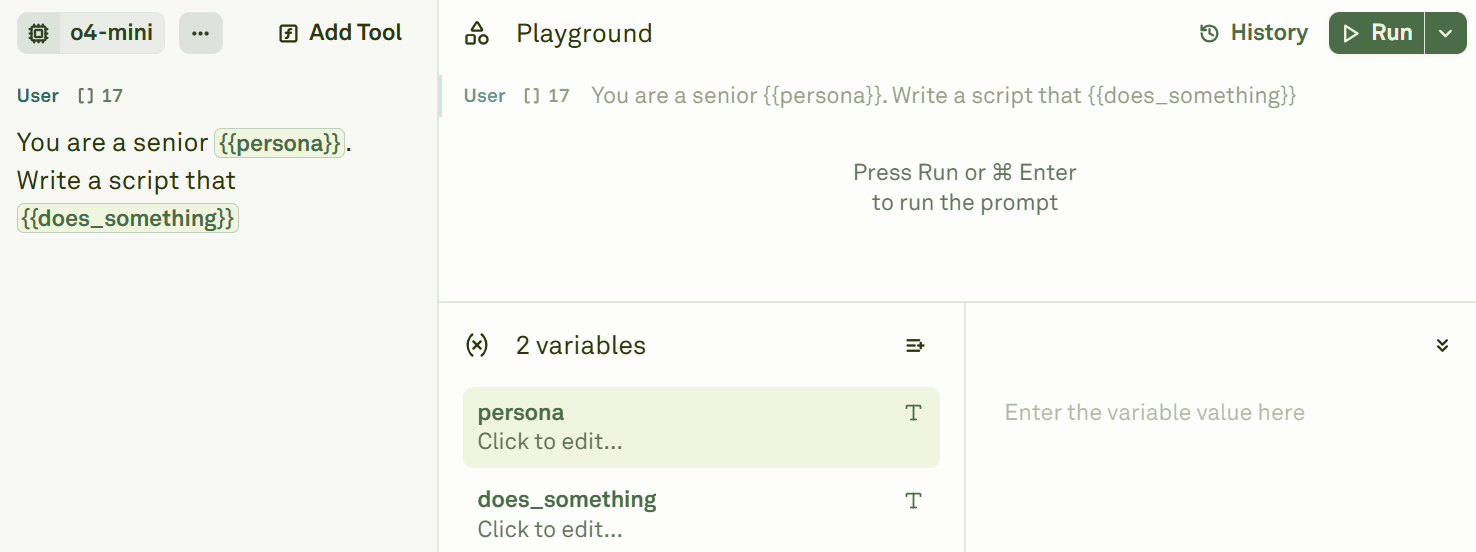
{{variable}} placeholder.2
Link the dataset
In the Playground, click Link Dataset and select a dataset from your workspace.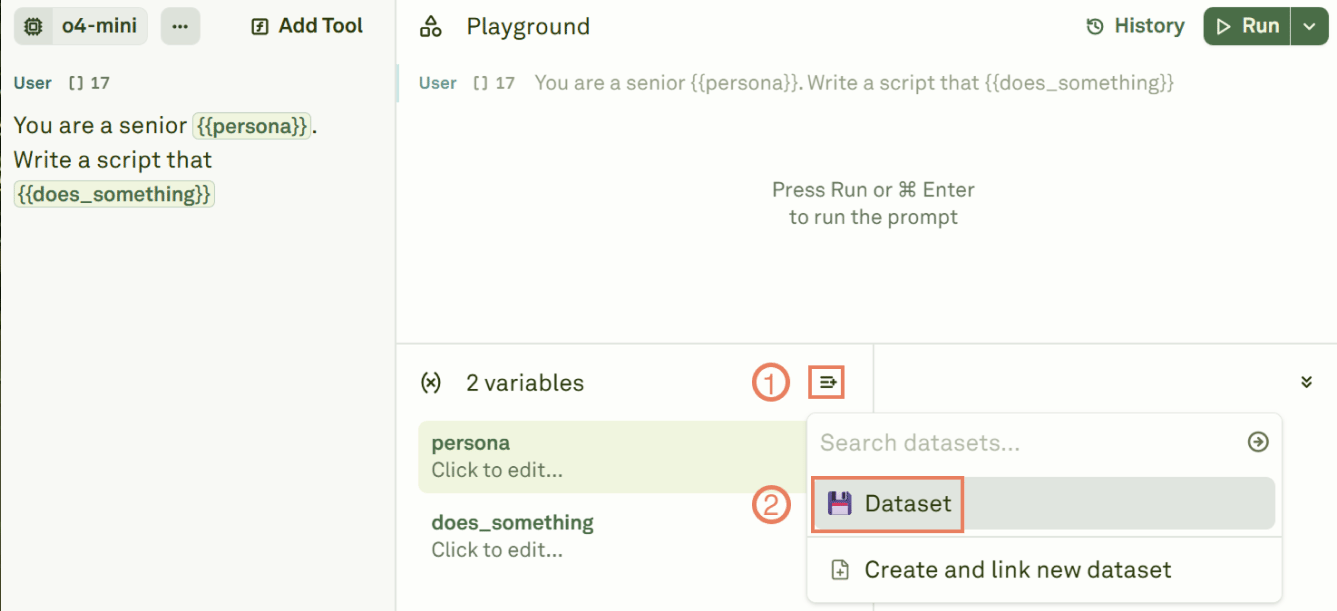
3
Navigate and run
Browse through dataset rows — selecting a row populates the Variable Editor with that row’s values. Click Run to execute the prompt with the selected row’s inputs.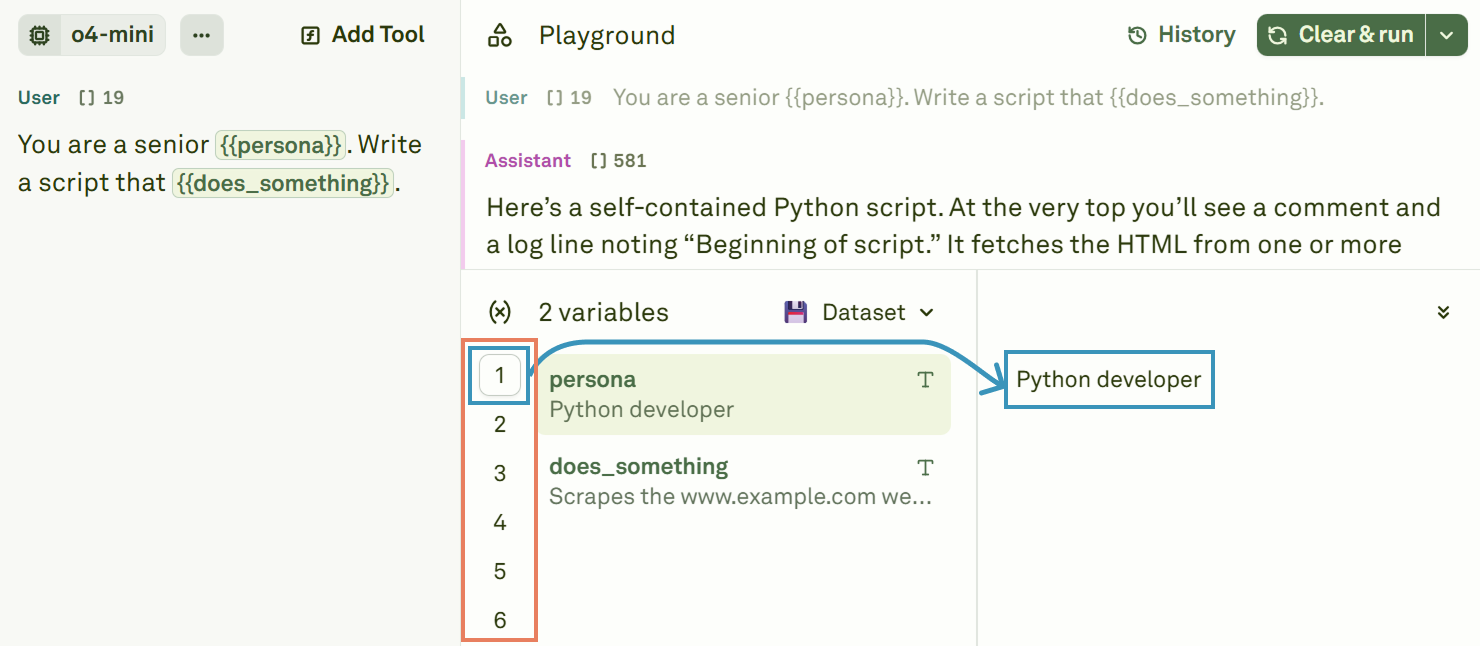
Key features
- Full bi-directional sync — New variables in the Editor automatically create columns in the linked dataset, and vice versa. Same for rows and cells.
- Column mapping — Columns map to variables by name. Extra columns are ignored; missing columns fall back to Variable Editor values.
- Dynamic columns — Columns configured as API or Prompt sources are executed at runtime with fresh data.