

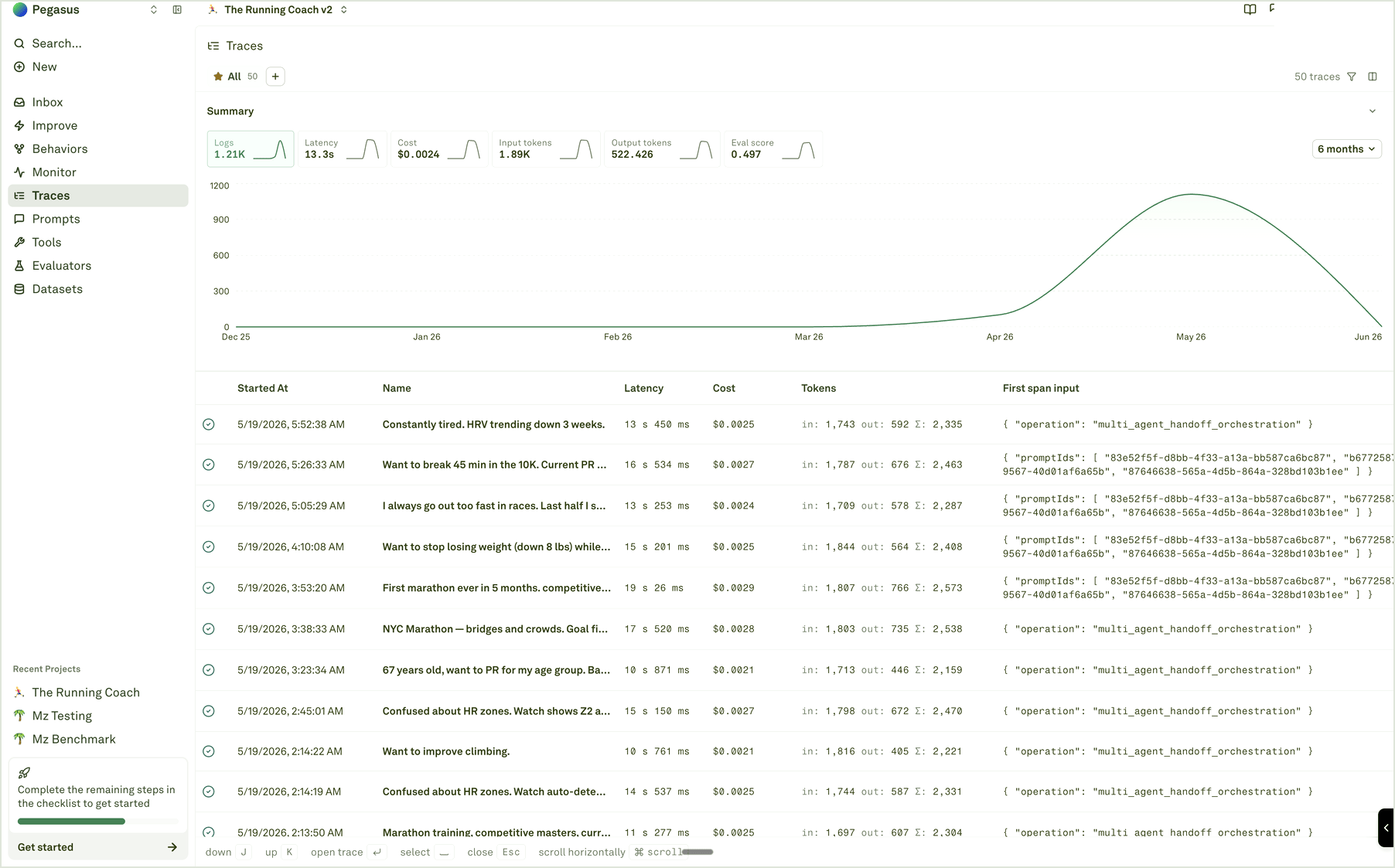
What the table shows
The Traces table gives you enough context to choose the right examples before opening the full trace:
Use clear trace names and safe metadata during instrumentation. A table full of generic names is hard to debug even when every request is technically logged.
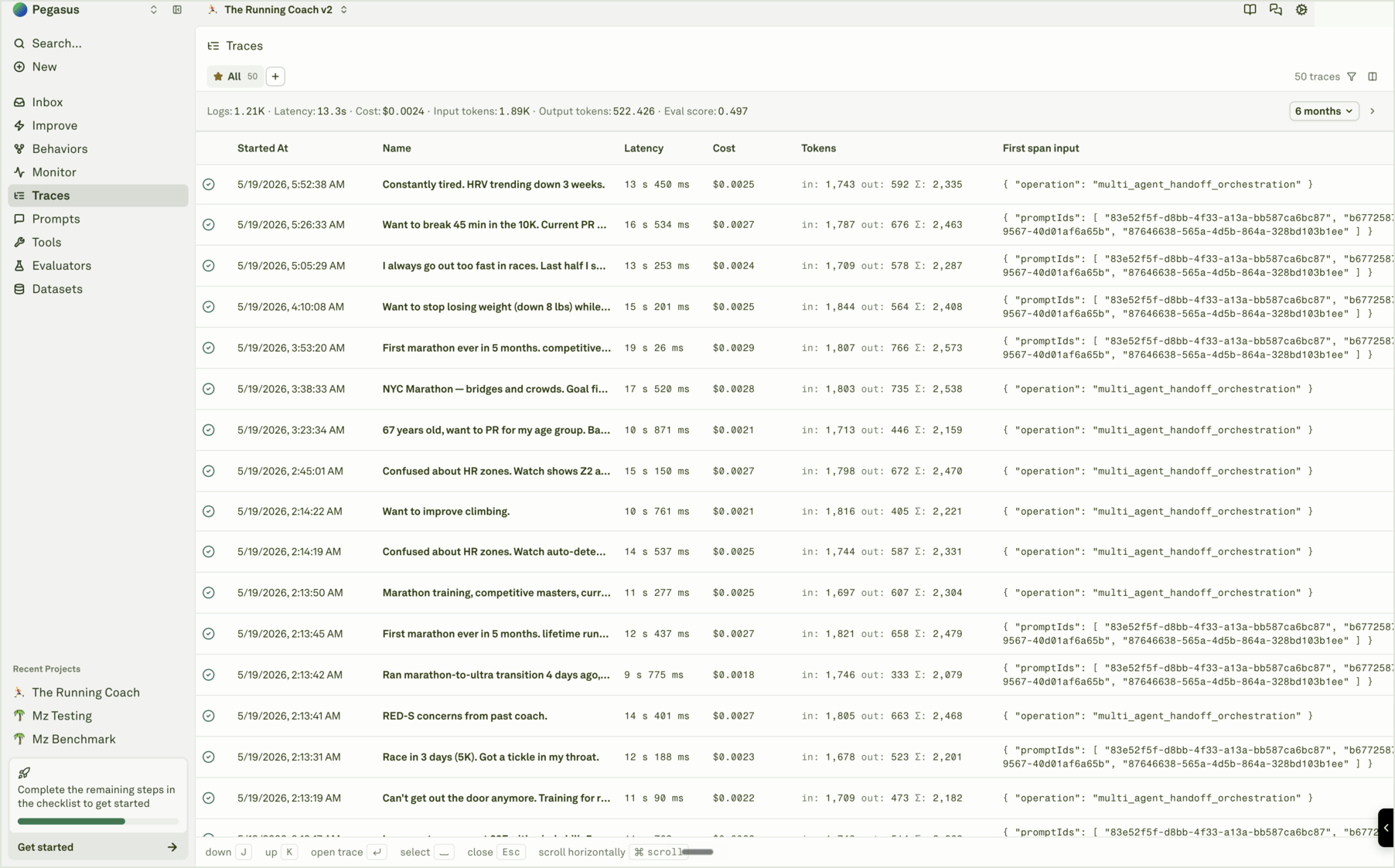
Open a trace
Select a trace row to open the side sheet. The viewer shows the trace tree, waterfall mode, selected span details, metrics, metadata, raw payload, evaluator results, and actions such as opening a model span in Playground or adding it to a dataset. Open traces when you need to answer:- What did the model see?
- What did the final response contain?
- Which tool or function ran?
- Did evaluator results attach to the right span?
- Was the request slow because of one span or several?
- Did metadata, tags, prompt context, or deployment context look correct?
Investigate from Monitor
When you arrive from a chart:- Keep the same time range.
- Add one filter that matches the chart signal, such as prompt, model, status, evaluator, cost, latency, tokens, environment, or tool-related metadata.
- Sort or scan for representative traces.
- Open a few examples and compare spans.
- Save useful examples to a dataset or use them as context for Improve.