

Run a prompt
After configuring your prompt in the Editor and setting variable values in the Variable Editor, click Run to execute the prompt and see the model’s response: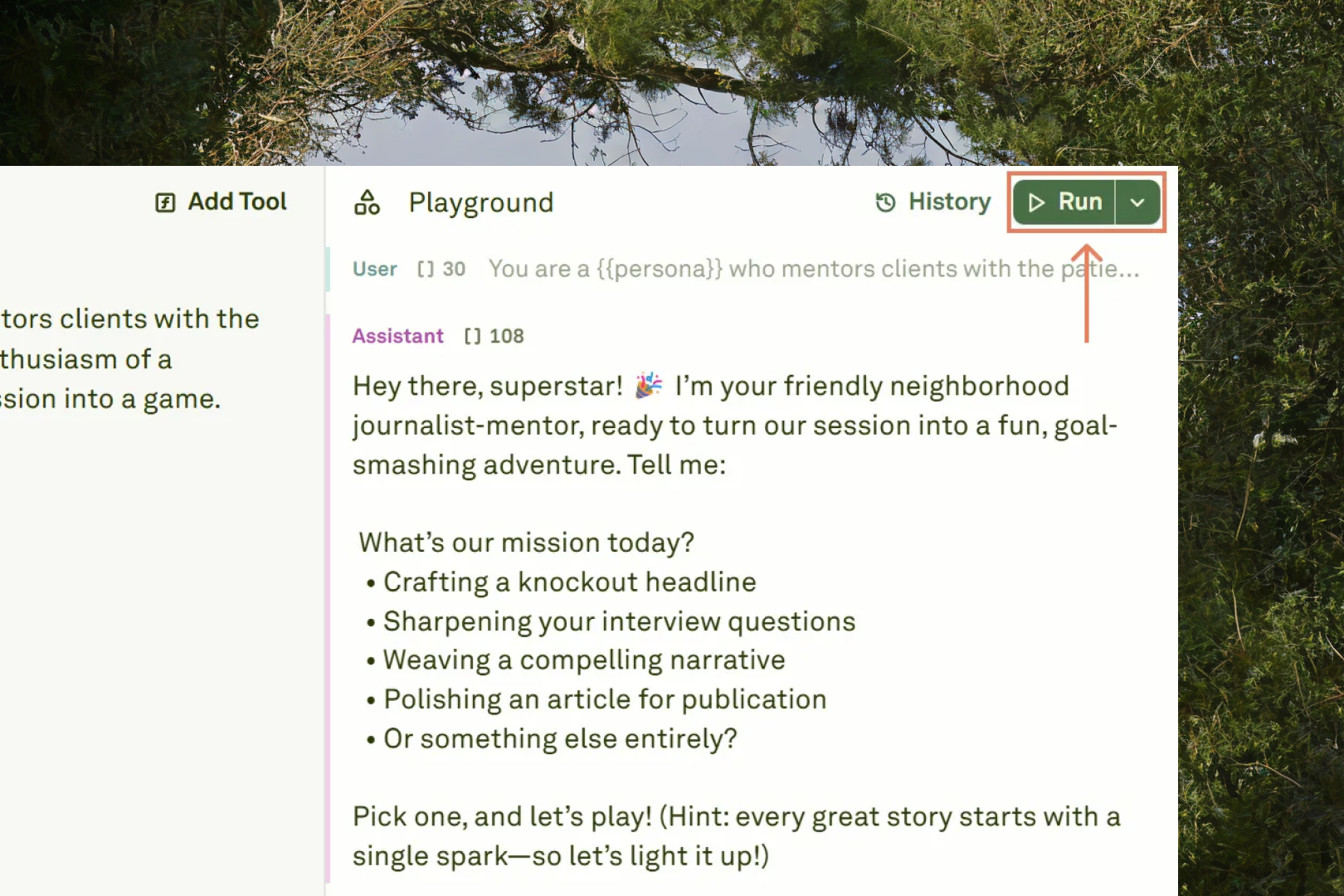
Stop a running prompt
If a prompt is taking too long or you notice an error in your setup, click the Stop generation button to immediately terminate the execution:
Execution options
The Playground provides two execution modes for different workflows: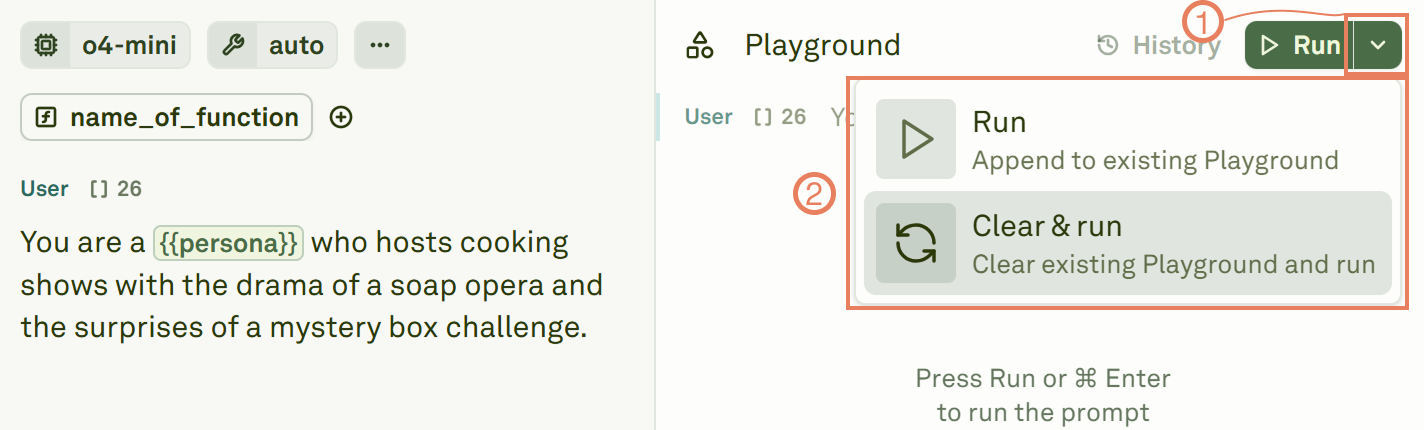
Build a conversation thread
You can have multi-turn conversations with the model directly in the Playground. After receiving a response, add a new User message to continue the conversation. The model retains the full context of previous exchanges. This works the same way as creating multi-shot prompts in the Editor, but happens interactively:- Run the prompt — The model generates a response (shown as an Assistant message).
- Add a follow-up — Type a new User message below the response to continue the conversation.
- Run again — Click Run to send the full conversation (including all prior messages) to the model.
- Include tool responses — If the model makes a tool call, provide the tool response and run again to see how the model incorporates external data.
Iterate on your prompt
The Playground is designed for rapid iteration. A typical workflow looks like:- Run your prompt with initial inputs.
- Review the model’s response — check for accuracy, tone, format, and completeness.
- Adjust your prompt in the Editor (refine instructions, add examples, tweak parameters).
- Run again to compare the new output against the previous one.
- Repeat until the output meets your quality bar.